Xbox Headset Bridge
Use the PDP LVL50 Wireless for Xbox headset on a Mac, speakers and microphone included.
- Platform
- macOS 14 or later
- Language
- C and Swift
- License
- GPL-3.0-or-later
- Status
- Working, tested on macOS 26 and 27
macOS sees the LVL50 dongle but has no driver for it, so the headset never shows up as a sound device. Xbox Headset Bridge speaks the headset's Xbox protocol from an ordinary Mac app and turns it into a normal audio device that any app can use.
What it does
- Shows up as "Xbox Wireless Headset" in System Settings → Sound, for both output and input.
- Works in every app: music, games, Discord, Zoom, OBS.
- The volume keys, the menu bar volume slider and the headset's own wheel all work.
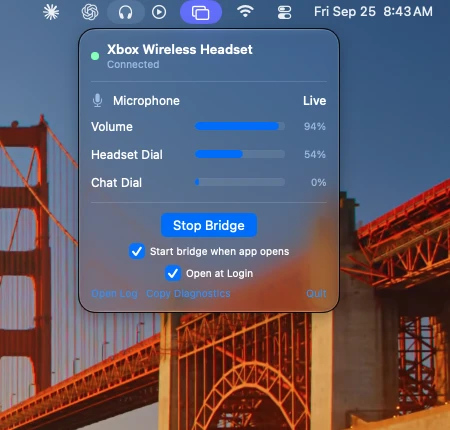
- A menu bar app starts and stops the bridge, can open at login, and copies a diagnostics report for bug reports.
- Reconnects on its own when the dongle is unplugged or the headset is switched off and on.
- No kernel extension, no DriverKit and no security changes. It is a normal app plus a standard Core Audio plug-in.
How it works
The LVL50 dongle is not a standard USB audio device. It speaks GIP, the Gaming Input Protocol that Xbox accessories use, and nothing in macOS understands it.
The bridge claims the dongle over USB, performs the same authentication handshake an Xbox or Windows PC does, and then streams audio both ways: 48 kHz stereo to the headset and 24 kHz mono from its microphone.
A Core Audio plug-in presents that stream to macOS as a real sound device, so apps never know the difference.
What you need
- A Mac running macOS 14 (Sonoma) or later. Tested on macOS 26 and 27.
- The PDP LVL50 Wireless for Xbox headset and its USB dongle. Other Xbox wireless headsets that use the same protocol may work, but only the LVL50 has been tested.
- Xcode Command Line Tools and Homebrew.
Install
Open Terminal and run these commands in order.
-
1. Install the build tools
xcode-select --install brew install openssl@3 -
2. Download and build
git clone https://github.com/zuujiscom/XboxHeadsetBridge.git cd XboxHeadsetBridge make -
3. Install the audio device and the menu bar app
sudo make install-plugin
make install-menubar
open /Applications/XboxHeadsetMenu.app
make install-menubar copies the menu bar app into your Applications folder. Keep it there and open it from there: Open at Login only works for an app in Applications. You can also drag build/XboxHeadsetMenu.app into Applications in Finder instead.
Use it
- Plug the dongle into the Mac and turn the headset on.
- Click the headphones icon in the menu bar. It should say Connected. If it says "Bridge stopped", choose Start Bridge.
- In System Settings → Sound, choose Xbox Wireless Headset as the output and the input.
Updating, uninstalling and troubleshooting are covered in the full setup guide. Found a problem? Open an issue on GitHub.
Credit and license
The protocol code is ported from xone, the Linux driver for Xbox accessories by Severin von Wnuck-Lipinski. See the original project.
Released under the GPL-3.0-or-later license. It is free to use, change and share under that license's terms.