Game Server Manager
Install and manage game servers on remote Linux and Windows machines, from your Mac.
- Platform
- macOS 15 or later
- Language
- Swift
- License
- GPL-3.0
- Status
- Early and under active development
Game Server Manager is a Mac app that sets up and looks after dedicated game servers on machines you reach over SSH. Pick a game and it installs it, opens the ports, starts it as a service and shows you how it is running, so you never need a terminal or a Steam command line.
What it does
- Installs a game server from scratch over SSH: SteamCMD, whatever the game depends on, a system service and firewall rules, then checks that the server really came up. Every step shows its progress.
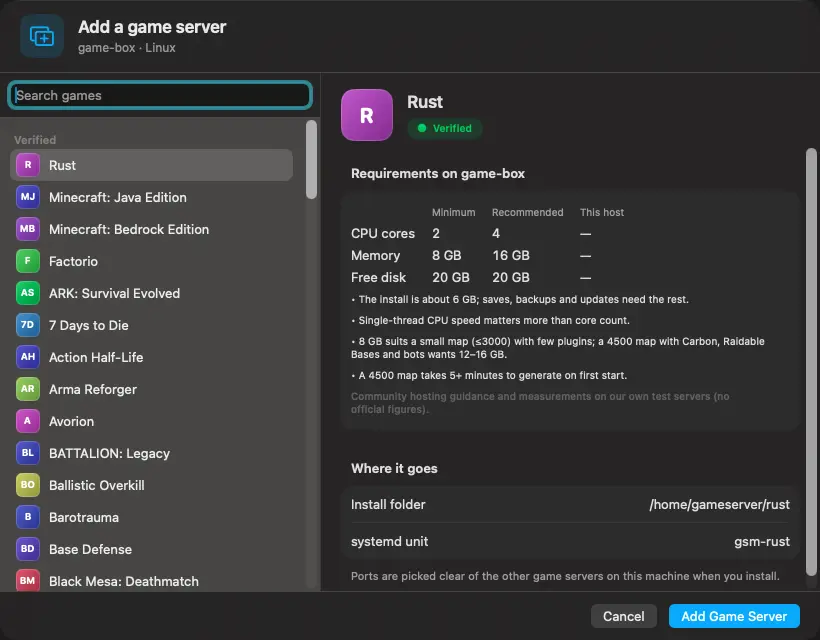
- A catalog of about a hundred game servers. Each is offered only on an operating system where it passed a full install test; games that failed are left out.
- Runs several game servers on one machine, picking ports that are clear of the ones already in use.
- Game consoles (RCON and telnet) for Rust, Source games, ARK, 7 Days to Die, Minecraft and more, always through the SSH connection, so console ports never need to be opened to the internet.
- A dashboard, performance graphs, an interactive terminal, player lists with kick and ban, a Rust map, and an editor for a server's settings and config files.
- Installs Carbon and uMod for Rust and manages plugins: upload, reload, disable and edit their configs.
- Creates and destroys Vultr machines from inside the app, with the price of each plan shown.
- A menu bar icon, and a notification when a server stops on its own.
How it works
The app keeps one SSH connection to each machine. It reads your SSH key from ~/.ssh, remembers the machine's host key the first time you connect and checks it on every connection after that, and keeps passwords and API keys in the macOS Keychain, never in a file.
The catalog is generated from LinuxGSM's game data and Steam's own file lists, so a game is offered on an operating system only if its server really ships for that system. Installs then run as ordinary SteamCMD downloads, with a service that restarts the server if it crashes.
Consoles go through the SSH connection too: the app opens a tunnel to the server's loopback address, so RCON passwords and ports never cross the internet in the clear.
What you need
- A Mac running macOS 15 (Sequoia) or later.
- A Linux (Ubuntu or Debian) or Windows Server machine you can reach over SSH with a key, or a Vultr account so the app can create one for you.
- Xcode 26 or later, free from the Mac App Store.
Install
Open Terminal and run these commands in order.
-
1. Download and build
git clone https://github.com/zuujiscom/game-server-manager.git
cd game-server-manager
xcodebuild -project GameServerManager.xcodeproj -scheme GameServerManager -configuration Release -derivedDataPath build -skipPackagePluginValidation
The first build downloads the app's Swift packages, so it needs an internet connection and takes a few minutes. The last option lets the terminal library's build step run.
-
2. Install and open the app
cp -R "build/Build/Products/Release/Game Server Manager.app" /Applications/
open "/Applications/Game Server Manager.app"
This copies the app into your Applications folder. You can also drag it there in Finder from build/Build/Products/Release. The first time it runs, macOS may ask to allow connections to your local network: allow it.
Use it
- Open the app, choose Add Existing Machine from the plus menu, enter the machine's address, user name and SSH key, and press Check Host.
- Press the plus in the Game Servers column, pick a game from the catalog and press Add Game Server. Then press Install and watch each step complete.
- Use the tabs to start and stop the server, watch its performance, run console commands, see who is playing and edit its settings.
Updating, uninstalling and troubleshooting are covered in the full setup guide. Found a problem? Open an issue on GitHub.
Credit and license
The game catalog is built from data in LinuxGSM by Daniel Gibbs and contributors. See the original project.
Released under the GPL-3.0 license. It is free to use, change and share under that license's terms.